How to export an audio visualizer with a transparent background
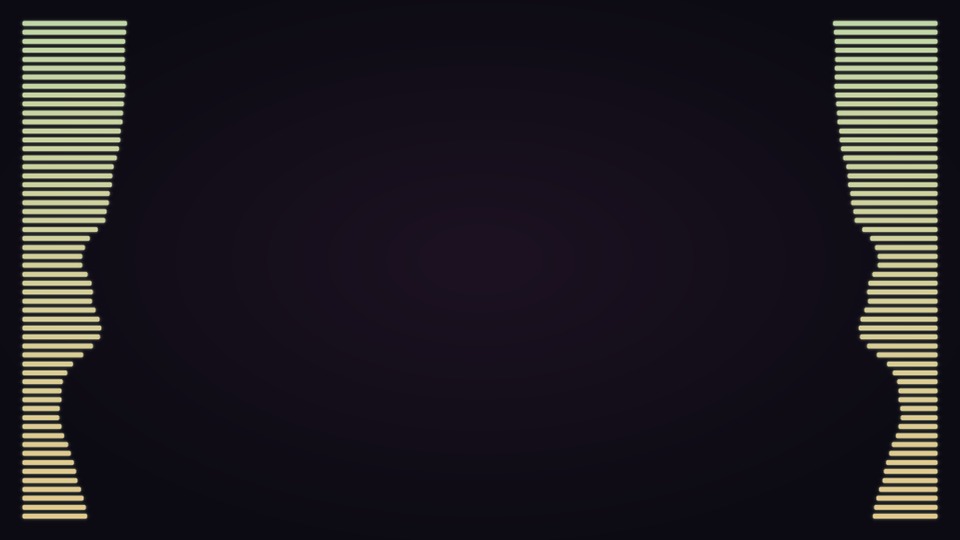
A transparent audio visualizer lets you place animated bars, rings or waves over artwork without covering it with a solid background. REVA renders an alpha overlay locally on Windows, ready for compositing in a video editor.
What a transparent overlay contains
The alpha channel stores transparency around the visualizer. The exported video contains the animation, without the preview artwork or an audio track. Add your artwork and original music separately in the editor.
Choose WebM or MOV
REVA supports WebM with VP9 alpha and MOV with ProRes 4444 alpha. Choose a format your editor can import with transparency, and test a short export before rendering your full track. Support depends on the editor, its version and the installed decoding components.
A normal video player may display transparent areas as black. Check the overlay over a colored image in your editor to see whether the alpha channel is being decoded correctly.
Export the visualizer
- Load your audio and match the canvas to your final video.
- Choose a visualizer and adjust its color, size and position. Preview it over your artwork.
- Select WebM VP9 or MOV ProRes 4444 in the export settings.
- Choose the quality and frame rate available in your plan, then select Export transparent visualizer.
- Save the video, placement JSON and preset, or download the package containing all three.
Place it over your artwork
Create a project with the same canvas dimensions used in REVA. Put the artwork or background on a lower video track and the visualizer on a track above it. Put the original audio on an audio track, starting at the same time as the overlay.
REVA can crop the export around the visualizer for faster rendering. An exported file may therefore be smaller than the project canvas. Use the center coordinates in the placement JSON to position the overlay at its intended location; do not stretch a cropped overlay to fill the whole canvas.
If you see a black rectangle
Confirm that you are viewing the overlay above a background layer and that your editor supports the chosen alpha format. Try a short export in the other format. Converting it to a typical opaque MP4 can discard the transparency.
Finish the video in your editor
Once the overlay, artwork and music are aligned, export the completed composition in the delivery format you need. Keep the transparent source and preset so you can reuse the animation or revise the look later.
New to REVA? Start with the offline music visualizer walkthrough or explore real REVA renders and downloadable presets.